

Do you want your PDF flipbook to be extra special? Imagine people not only reading it, but also hearing it. Adding sound makes your flipbook super interesting. It makes your flipbook more fun. This grabs people’s attention and keeps them interested in listening to your flipbook. Think how much better a story is with someone reading it out loud! The Listen to Flipbook feature helps people with good hearing and those with poor vision. it helps people learn better.
Imagine teaching a language in a flipbook with someone saying the words. Adding sound makes your flipbook different and memorable. It will help language learners and is perfect for listening. It converts your PDFs into engaging audio experiences. We found a convenient solution, and that is TNC FlipBook Classic, a WordPress plugin, that makes it possible.
Ready to listen to your PDF flipbook? Let’s explore how you can make your PDF flipbook listen and speak for itself.
Why Add Listening Features to Your PDF Flipbook?
If you add Listen to your PDF or Flipbook, you will get a lot of benefits. Let’s explore some key benefits:
- Engagement: It adds another dimension to your content, grabs attention, and keeps it longer.
- Helps everyone: People who can’t see well, or who like to listen, can use your flipbook.
- Easier to learn: Sound helps people remember things better.
- Super special: It makes your flipbook different from all the others.
- More fun: Listening makes your PDF flipbook more interesting and keeps people watching.
How to Add Listening Features to Your PDF Flipbook
We mentioned earlier that a WordPress plugin, TNC FlipBook Classic, makes this possible. So, if you are a WordPress user, you can quickly add this Listen to Your PDF/Flipbook feature. Now, let’s see the step-by-step instructions to add Listen to PDF Flipbook.
Step 1. Install & Activate TNC FlipBook Classic Plugin:

You need to install the TNC FlipBook Classic plugin on your WordPress site and activate it. You will find it in your WordPress dashboard.
Step 2. Create New or Choose Your Flipbook:

Now you have to create a new flipbook or choose an existing one. You can upload your PDF directly to the plugin and create a beautiful flipbook.
Step 3. Enable Transcribe Feature:

This is the main feature we are talking about. Look for the “Transcribe” option in the flipbook settings. Enable or disable the Transcribe feature for listening features to your PDF Flipbook.
Step 4. Customize Transcribe Options:

You can select the language you want the flipbook to speak. Many languages are available. You can also often choose different voices (A total of 43 voices are available). You can select the default speed of the voice and pitch. You can select which controls you want your readers to have for the Transcribe feature.
Step 5. Save and Publish:
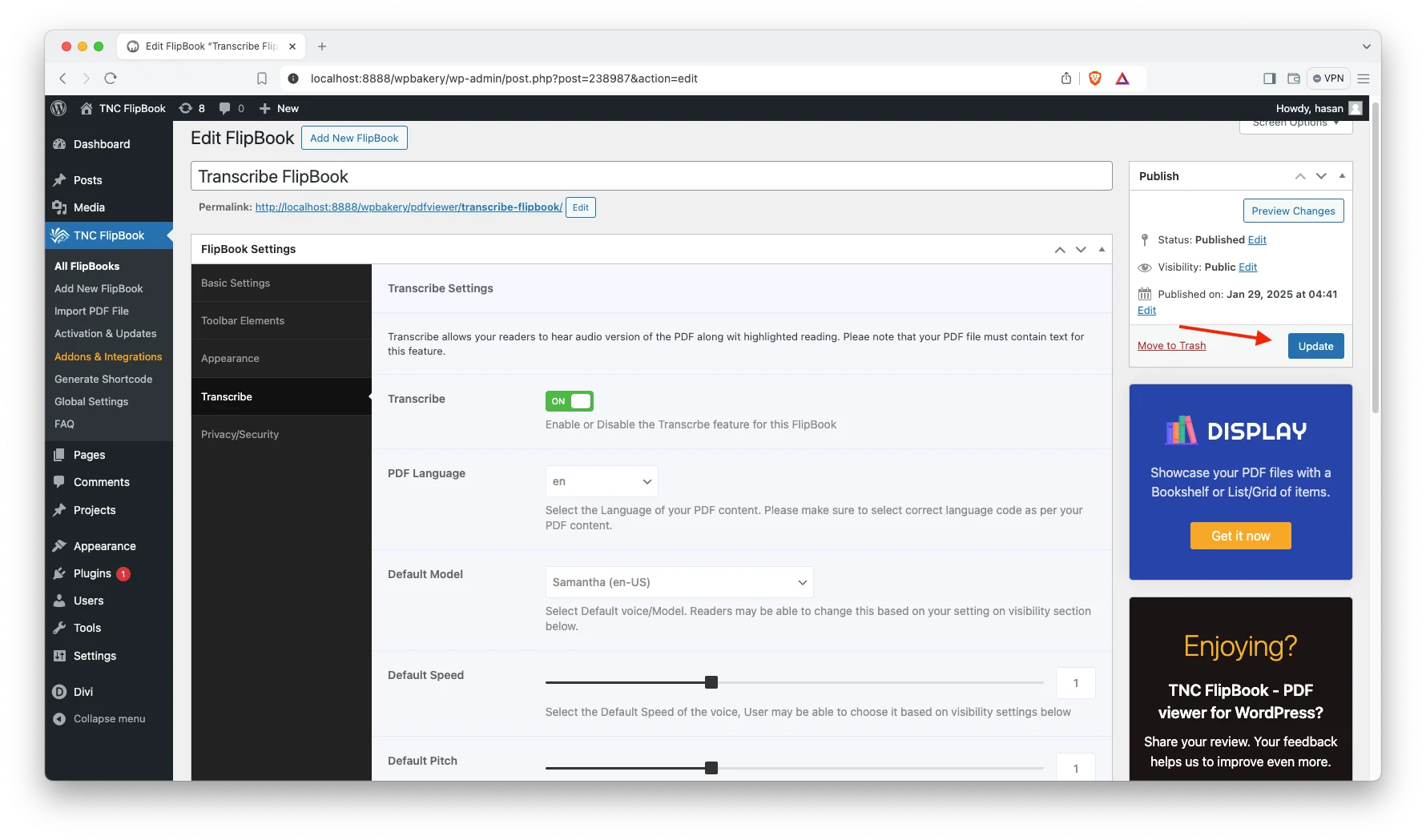
After completing all these steps save and update your changes. Once you are happy with the settings, publish or update your flipbook.
Now, share your flipbook with the world. Readers can now click the “Speak” or “Listen” button (usually a speaker icon) on the flipbook. The flipbook will then read the text aloud.
How to Use (Transcribe) Listen to Your PDF Flipbook
Active Transcribe: Enable or Disable Transcribe feature for your flipbook.
Open PDF: Open your PDF file in TNC FlipBook Classic.
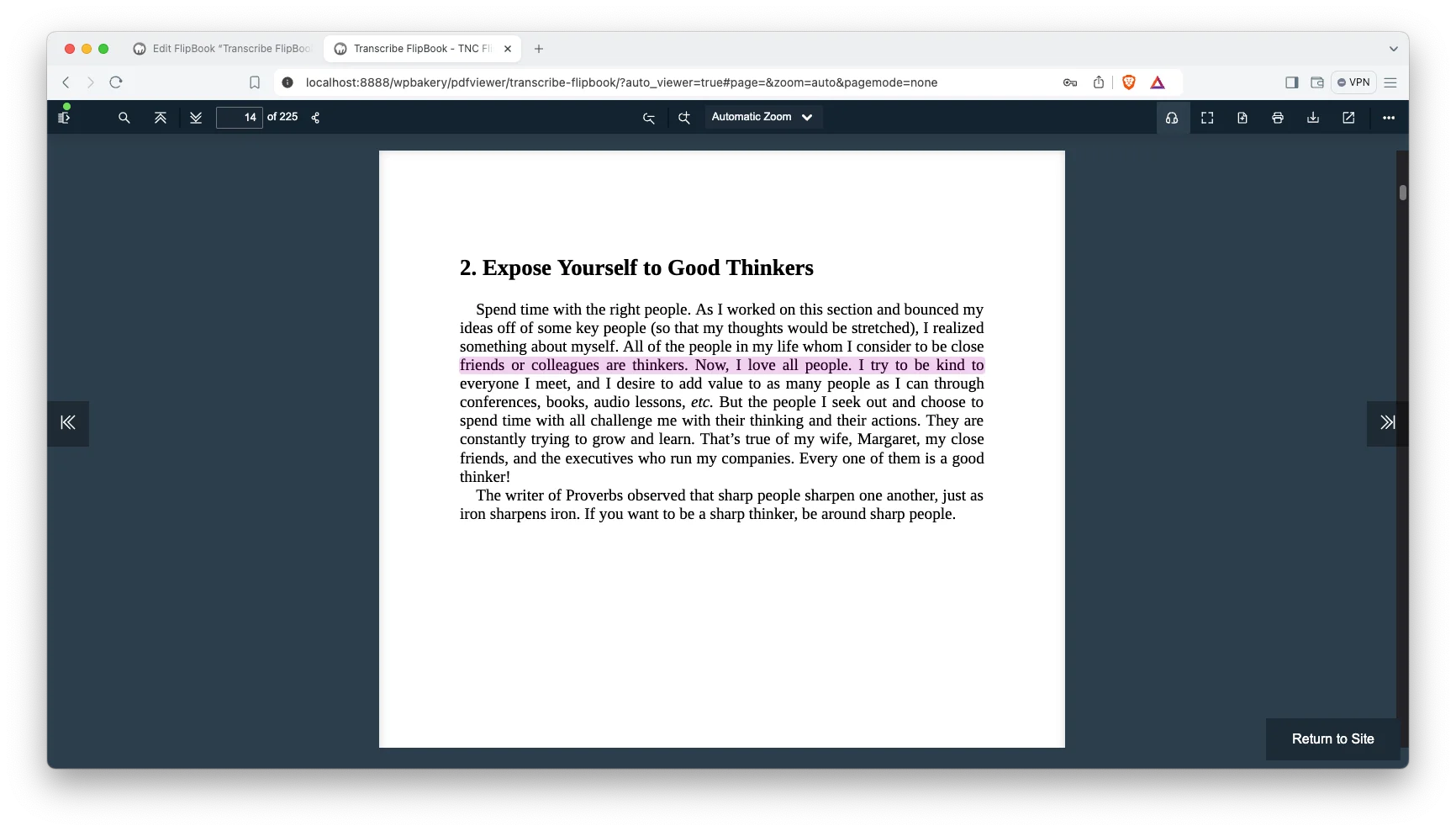
Access Transcribe: Click on the “headphones icon” to start listening.

Select Language: Choose your desired language.

Select Voice: Select your preferred voice.
Start Playback: Click “Read”
Adjust Settings: Use playback controls (Read, Pause, Resume, Stop)

Stop Playback: Click “Stop.”
Use Cases For Transcribe Feature
Let’s explore some compelling use cases for a “transcribe” feature within a PDF or Flipbook:
- Multilingual Accessibility
- Language Learning
- E-learning Modules
- Product Catalogs
- Marketing Brochures
- Training Materials
- Presentations & Reports
- Tourism & Travel Guides
- Visually Impaired Users
- Reading Difficulties
- Webinars & Research
- Personal Journals
Getting the Most Out of Your Listening Flipbook:
- Make sure the sound improves the experience, not distract from it.
- If you are new to adding sound, avoid complicated PDF formatting.
- Explore different ways to use transcribe to make your flipbook unique.
- For best listening, use headphones or speakers in a quiet environment.
- Experiment with different voices and speeds to find the settings that work best for you
- Simplify PDF and avoid images, it can’t read image text inside PDF.
Troubleshooting Listening Issues:
No Sound:
- Make sure your speakers or headphones are properly connected and turned on.
- Ensure the volume is turned on your computer.
- Check if the correct audio output device is selected on your computer.
Playback Issues:
- If you select another voice while reading, it will give you an error message (Already reading. Please pause or stop first) Before selecting another voice or language or anything, you need to stop reading first.
- Whenever someone turns the page without stopping, it will not play the next page. You must stop and then turn to the new page to read the page.
- Check your internet connection if required for certain voices.
Conclusion
Adding sound makes your flipbook interesting and keeps people watching. It also helps more people use your flipbook, and help people learn better. So, this is a great way to make your flipbook special. How you can listen to your PDF flipbook, transforming it from your reading to your experience.
Imagine your readers listening to your work while commuting or language learners practicing pronunciation. This blog showed you how easy it is to transcribe and listen to your PDF in Flipbook. If you want to give your PDF flipbook a voice, follow the instructions provided.
Apart from this, If you want to read more blogs, visit here.





0 Comments