

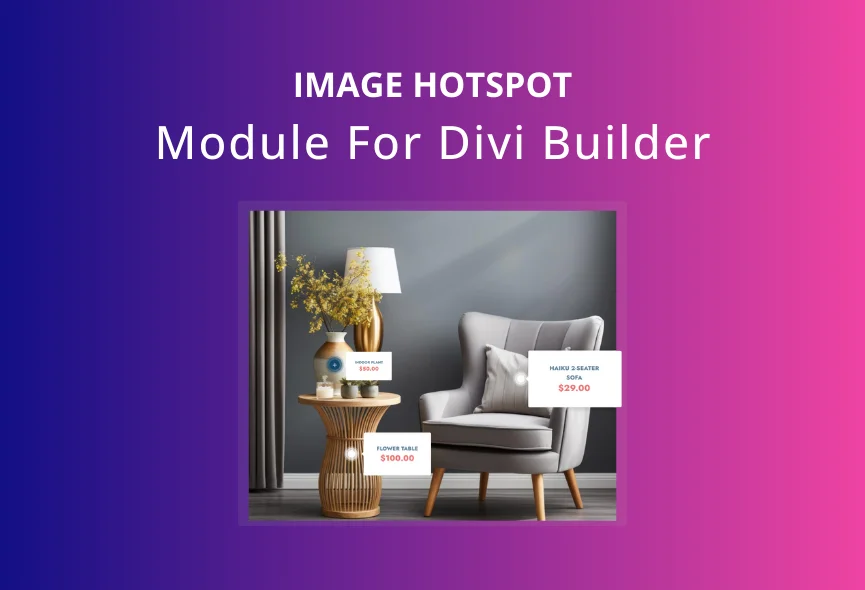
Hello, Divi lovers! Make your Divi website more attractive and powerful with just a few simple steps. You can showcase product details, highlight team members, or create interactive maps beautifully with a simple module. Everyone uses images on their website for different reasons. But what if your static images provide more information and make your website more functional? Yes, it is possible with an image hotspot module for your Divi Builder.
You can quickly create an image hotspot on your Divi website using a Divi module. Imagine hovering over a product image and immediately seeing its price, description and a “Buy Now” button. An interactive map where clicking on a location reveals interesting information. This module is incredibly user-friendly, even for beginners.
In this blog, I will explain the simple steps to add an image hotspot module to your Divi website.
What is Divi Image Hotspot Module?
An image hotspot module allows you to create interactive images for your Divi website. Simply upload your photo, add your hotspot, and customize the content displayed when a hotspot is clicked. You can bring your images to life and attract your audience. There are many image hotspot modules available. But here I will show the most suitable one and that is TNC Divi Image Hotspot.
This module performs well in any situation. When someone hovers or clicks on this hotspot area, it triggers an action, such as displaying additional information, opening a link, or playing a media file. It is ideal for guiding users through complex products and providing engaging content.
How to Get This Image Hotspot Module?
- Download from the elegantthemes marketplace or just Click Here.
- Once you have downloaded the plugin, log in to your website admin panel.
- Upload the downloaded zip file to your WordPress plugins directory.
- Click on the Install Now button.
- After installation, You can activate the plugin.
Features of TNC Divi Image Hotspot Module
Clickable Hotspots: It allows you to create clickable hotspots on specific areas of your website image.

Content Variety: Hotspots can display text, images, videos, products, and custom code. This allows you to tailor the user experience to your needs.

Multiple Trigger Element: You can choose the classic click action for a clean and direct experience or a more subtle hover effect. Mouse enter focus, or click to create a perfect user experience.

Advanced Positioning Controls: You can highlight margins, padding, and offset. It ensures that your hotspots are placed precisely where you want them.

Highly Customizable: You can match your brand with various customization options for hotspot styles, colors, and animations.

Highlight Key Features: You can use targeted hotspots to draw attention to important product features to help visitors understand your value.

Responsive Design: TNC Divi Image Hotspot ensures a responsive design and a perfect user experience across all platforms.
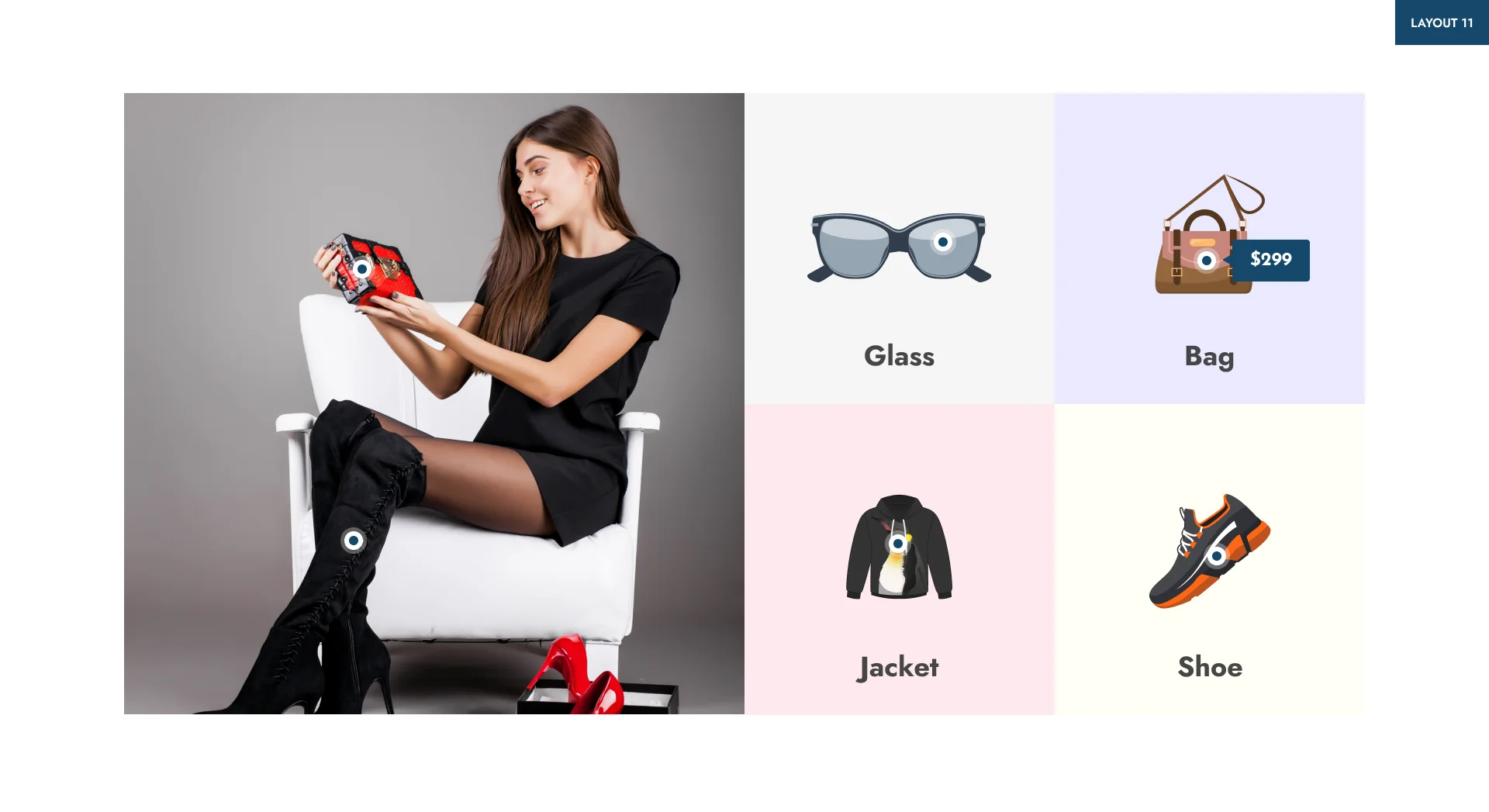
How to Add Image Hotspot to Your Divi Builder?
Access Image Hotspot Module:
- Create a new page or edit an existing one using the Divi Builder.
- Look for the image hotspot module in your Divi Builder’s module list. It might be in a separate category or listed as a regular image module.
Upload Your Image & Create Hotspots:
- Insert the image you want to add hotspots to using the image module.
- You will get a visual interface for creating hotspots. You need to click on the image to define the hotspot area.
- You will get all the information to adjust the hotspot shape, size, and position.
Customization:
- You can add text, images, or links to the hotspots.
- Customize the appearance of the hotspot content, such as font, color, and size.
Adjust Hotspot Behavior:
- This module has intuitive settings for its appearance and functionality.
- Edit colors, layout, and more to match your website’s design.
Why Use TNC Divi Image Hotspot?
- Highlight Key Features: You can easily highlight key product features or service offerings
- Easy to use: The intuitive interface makes creating interactive images a simple process.
- Highly customizable: Control the look and feel of your hotspots with a wide range of styling options.
- Device-friendly: Your images will look great on all devices.
- Customer Support: When you choose TNC Divi Image Hotspot, you can access exceptional support from the ThemeNcode support team.
Use Cases of Image Hotspot Module
Let’s explore some compelling use cases for an Image Hotspot Module feature for Divi Builder.
- E-commerce
- Product Showcases
- Team Introductions
- Interactive Maps
- Real Estate Listings
- Infographics
- Tutorials
- Fashion Lookbooks
- Event Promotion
- Interactive Quizzes
- And more
Conclusion
Quickly turn your still images into interactive experiences that will engage your audience. So, if you place hotspots perfectly, you can provide additional information and guide users to desired actions. Simply follow these steps and you can successfully add an Image Hotspot module to your Divi builder.
Don’t forget to follow ThemeNcode for exciting updates and more upcoming products.




0 Comments