

WooCommerce does not include a built in setting to hide prices. To make WooCommerce hide price for some or all products, you either add a small code snippet that filters the price output, or use a plugin that switches products into a catalog or request a quote mode. Which route is right depends on who should see prices and what you want visitors to do instead of adding to cart.
This tutorial covers the common reasons store owners hide prices, three working methods (with code you can copy), how to replace the price with a quote request, and the side effects to check before you go live.
Quick answer: to hide prices in WooCommerce, filter woocommerce_get_price_html to return a message instead of the price, and filter woocommerce_is_purchasable to remove the add to cart button. For a no code setup that also lets customers request a quote, use a request a quote plugin such as QuoteX.
Why hide prices in a WooCommerce store
Hiding prices sounds counterintuitive for an online shop, but it is common in a few business models:
- Wholesale and B2B: prices depend on volume, contract or customer tier, so a single public price is misleading.
- Custom or made to order products: furniture, signage, printing, machinery and similar items are priced after the customer shares specifications.
- Members only pricing: logged in customers or trade accounts see prices, everyone else sees a prompt to register or log in.
- Catalog mode: the store acts as an online catalog while sales happen offline, by phone or through a sales team.
- Price agreements with suppliers: some brands restrict how resellers advertise prices online.
In almost every case, hiding the price is only half the job. You also need to remove the add to cart button for those products and give the visitor a clear next step, usually a quote request or a login link.
Method 1: Hide WooCommerce prices for logged out visitors with code
This is the most common setup: guests see a “Log in to see prices” link, logged in customers see normal prices and can buy. Add the code to a child theme’s functions.php, a code snippets plugin, or a small custom plugin. Do not edit your parent theme directly, because updates will overwrite the change.
<?php
/**
 * Replace the price with a login link for visitors who are not logged in.
 */
add_filter( 'woocommerce_get_price_html', 'tnc_hide_price_for_guests', 10, 2 );

function tnc_hide_price_for_guests( $price, $product ) {
	if ( is_user_logged_in() ) {
		return $price;
	}

	return sprintf(
		'<a href="%s">%s</a>',
		esc_url( wp_login_url( get_permalink() ) ),
		esc_html__( 'Log in to see prices', 'your-textdomain' )
	);
}

/**
 * Stop guests from adding products to the cart.
 */
add_filter( 'woocommerce_is_purchasable', 'tnc_guests_cannot_purchase', 10, 2 );

function tnc_guests_cannot_purchase( $purchasable, $product ) {
	if ( is_user_logged_in() ) {
		return $purchasable;
	}

	return false;
}
What happens here: woocommerce_get_price_html controls the price HTML shown on shop, category and single product pages, so returning a link replaces the price everywhere it is printed. woocommerce_is_purchasable tells WooCommerce whether a product can be bought. When it returns false, WooCommerce hides the add to cart button on the single product page and shows a “Read more” link in product loops instead.
Variable products have one more step: each variation is checked separately. If guests can still pick a variation and buy it, also hook the same function to woocommerce_variation_is_purchasable.
Method 2: Hide prices for specific categories or products
Sometimes only part of the catalog needs quote based pricing, for example a “Custom orders” category, while standard items stay buyable. You can target a product category with has_term():
<?php
/**
 * Hide the price and disable purchase for products in the "custom-orders" category.
 */
function tnc_is_quote_only( $product ) {
	return has_term( 'custom-orders', 'product_cat', $product->get_id() );
}

add_filter( 'woocommerce_get_price_html', 'tnc_hide_price_by_category', 10, 2 );

function tnc_hide_price_by_category( $price, $product ) {
	if ( tnc_is_quote_only( $product ) ) {
		return esc_html__( 'Price on request', 'your-textdomain' );
	}

	return $price;
}

add_filter( 'woocommerce_is_purchasable', 'tnc_disable_purchase_by_category', 10, 2 );

function tnc_disable_purchase_by_category( $purchasable, $product ) {
	if ( tnc_is_quote_only( $product ) ) {
		return false;
	}

	return $purchasable;
}
Replace custom-orders with your category slug. For variations, note that a variation inherits its categories from the parent product, so pass the parent ID ($product->get_parent_id()) when checking a variation. To target individual products instead, compare $product->get_id() against an array of product IDs, or check a custom field.
Method 3: Use a request a quote plugin
Code snippets hide the price, but they do not collect anything. If your goal is to turn visitors into qualified leads, you need a way for them to ask for pricing on the products they are interested in. That is what a request a quote plugin does.
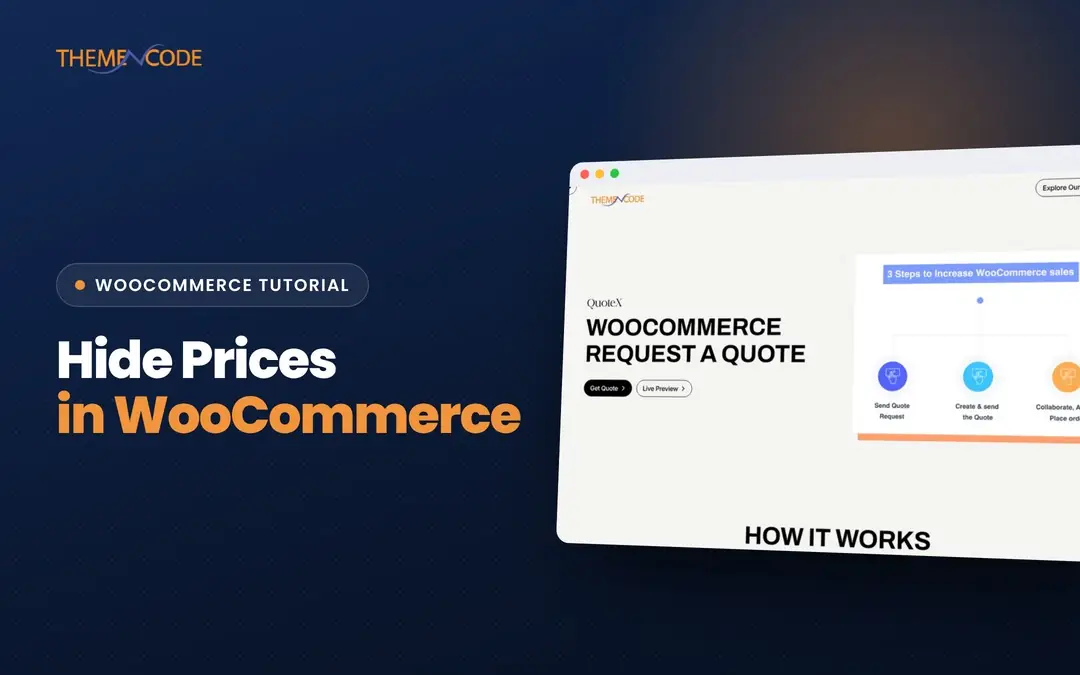
QuoteX is ThemeNcode’s request a quote plugin for WooCommerce. It adds a quote request option to products, and it can hide the price and the add to cart button so customers request a quote instead of checking out. This keeps the whole flow inside WooCommerce, without custom code to maintain when WooCommerce or your theme updates.
A typical quote based flow looks like this:
- The visitor browses products as usual, but sees a quote button where the price and add to cart would be.
- They add one or more products to a quote request and submit their details.
- You receive the request, check quantities, specifications and the customer’s tier.
- You reply with a price, and the sale continues by email, invoice or a custom order.
WooCommerce hide price methods compared
| Method | Best for | Pros | Cons |
|---|---|---|---|
| Code: hide for guests | Wholesale or member pricing | Free, lightweight, full control | Needs a developer to adjust and maintain |
| Code: hide by category | Mixed catalogs with some custom items | Targets only the products that need it | Category logic gets messy as rules grow |
| Request a quote plugin | Custom, B2B and made to order products | Collects leads, no code, settings in the dashboard | Another plugin to keep updated |
| Full catalog mode | Stores that sell offline only | Simple, removes checkout entirely | No online revenue at all |
A good rule for any WooCommerce hide price setup: if visitors only need to log in to buy, the code method is enough. If the price genuinely depends on a conversation, use a quote plugin so you capture the request rather than losing the visitor.
Side effects to check after hiding prices
Hiding the price changes more than the product page. Before launching, test these areas:
- Theme templates: some themes print prices outside the standard WooCommerce functions, for example in custom quick view popups or sliders. Check every place a product appears.
- Page builder widgets: product grids built with page builders may use their own price output. Test them while logged out.
- Search results and related products: confirm the price is hidden in product search, upsells, cross sells and related product blocks.
- Structured data: WooCommerce adds Product schema with price information. Hiding the visible price changes what search engines can show in rich results. Review Google’s product structured data documentation if price display in search matters to you.
- Product feeds: Google Merchant Center and similar feeds usually need a price. If you advertise through shopping feeds, exclude quote only products from the feed.
- Caching: if guests and logged in users see different prices, make sure your page cache does not serve a logged in page to a guest. Most caching plugins skip logged in users by default, but verify it.
Tips for converting visitors without a visible price
A hidden price adds friction, so remove friction everywhere else:
- Say why the price is hidden, for example “Pricing depends on quantity and finish”.
- Give a typical range or starting price in the description when you can.
- Keep the quote form short: name, email, quantity and notes is often enough.
- Reply quickly. Quote requests go cold within a day or two.
- Show the rest of the product clearly: photos, specifications, lead times and reviews.
If your quote process involves sending catalogs or price sheets, a flipbook version of your PDF catalog can be embedded on the same page so buyers can browse the full range while they wait for your reply.
Frequently asked questions
Can WooCommerce hide prices without a plugin?
Yes. Filtering woocommerce_get_price_html and woocommerce_is_purchasable in a child theme or code snippet hides the price and the add to cart button without installing a dedicated plugin.
How do I hide the price until a customer logs in?
Check is_user_logged_in() inside a woocommerce_get_price_html filter and return a login link for guests. Also disable purchasing for guests so the add to cart button disappears.
How do I remove the add to cart button in WooCommerce?
Return false from the woocommerce_is_purchasable filter for the products you want to block. For variable products, also filter woocommerce_variation_is_purchasable.
Does hiding prices hurt SEO?
Hiding prices does not stop pages from ranking, but it can change which rich results Google can show for your products. Quote only products should also be excluded from shopping feeds that require a price.
How do I add a request a quote button in WooCommerce?
Use a request a quote plugin such as QuoteX, which adds a quote option to products and can hide the price and add to cart button at the same time.