

Want your PDFs to speak? Imagine your readers listening to your blog posts, ebooks, or reports. TNC FlipBook, a WordPress plugin, makes this possible. TNC FlipBook implements a speaking feature so readers can listen to your content. It also helps language learners and is perfect for busy people who prefer audio. It converts your PDFs into engaging audio experiences. Anyone can listen anytime and anywhere.
TNC FlipBook named this feature Transcribe. It actively reads your PDF files aloud and converts static text into audible content. This innovative feature supports many languages and voices. You can also customize the voice. It provides the ability to listen to documents in the language of your choice and customize the audio output as per your needs. Whether you are multitasking, learning a new language or looking for improved accessibility, Transcribe is the complete solution for your WordPress flipbook.
Ready to give your PDFs a voice? Read this article properly and you will quickly make a flipbook with speaking functionality.
Table of Contents
Step-by-step Guide on How to Make a Speaking Flipbook
1. Install & Activate TNC FlipBook:

First, install the TNC FlipBook plugin on your WordPress site. Then, activate it. You’ll find it in your WordPress dashboard.
2. Create or Choose Your Flipbook:

Next, create a new flipbook or choose an existing one. You can upload your PDF directly to the plugin.
3. Enable Speaking Feature (Transcribe):

Now, the magic happens! Look for the “Transcribe” option in the flipbook settings. Enable or disable the Transcribe feature for your flipbook.
4. Customize Speaking Options:
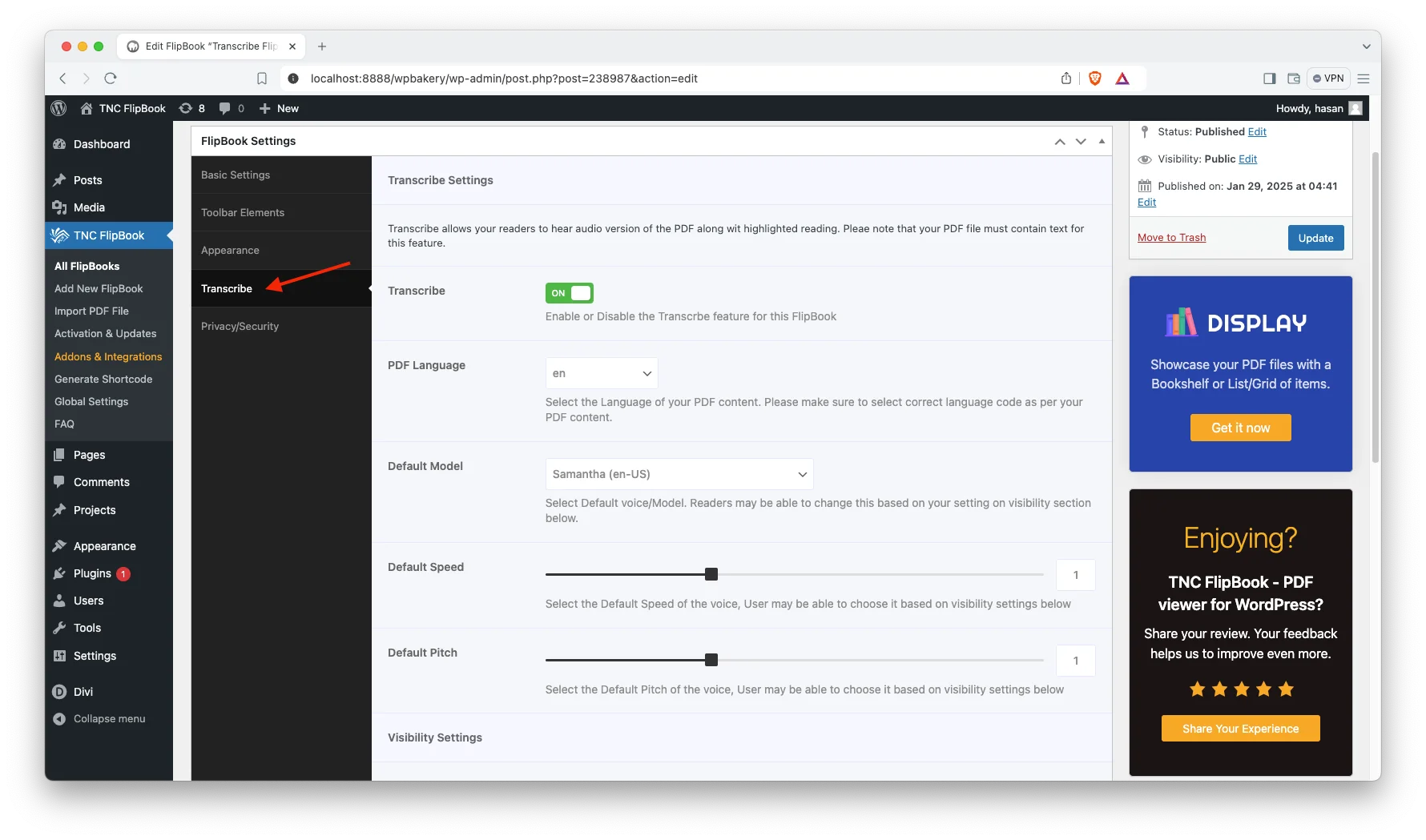
You can select the language you want the flipbook to “speak.” Many more languages are available. You can also often choose different voices (A total of 43 voices are available). You can select the default speed of the voice and pitch. You can select which controls you want your readers to have for the Transcribe feature.
5. Save and Publish:
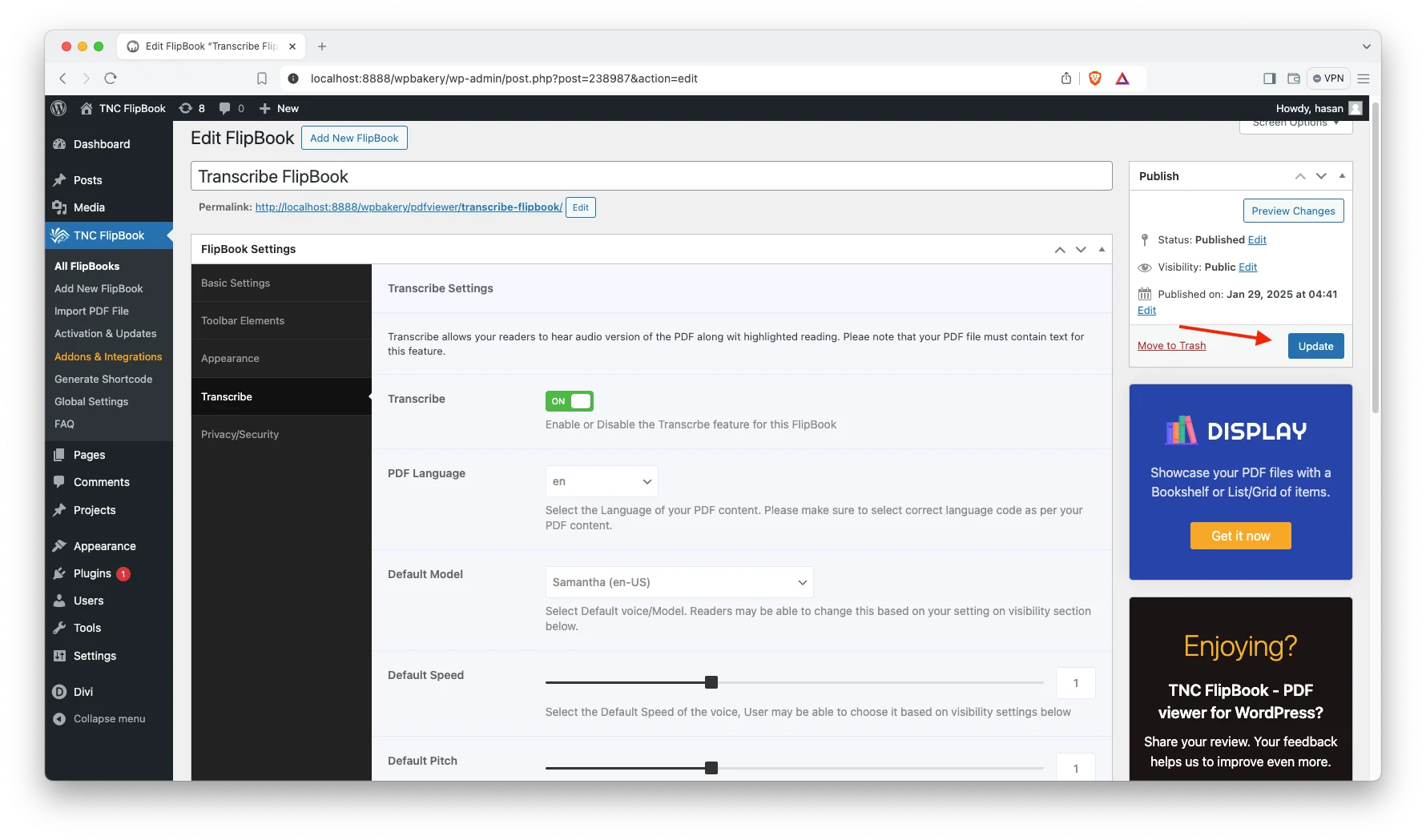
Don’t forget to save or update your changes. Once you are happy with the settings, publish or update your flipbook.
Now, share your flipbook with the world. Readers can now click the “Speak” or “Listen” button (usually a speaker icon) on the flipbook. The flipbook will then read the text aloud.
How to Use Speaking Flipbook (Transcribe)
- Active Transcribe: Enable or Disable Transcribe feature for your flipbook.
- Open PDF: Open your PDF file in TNC FlipBook.
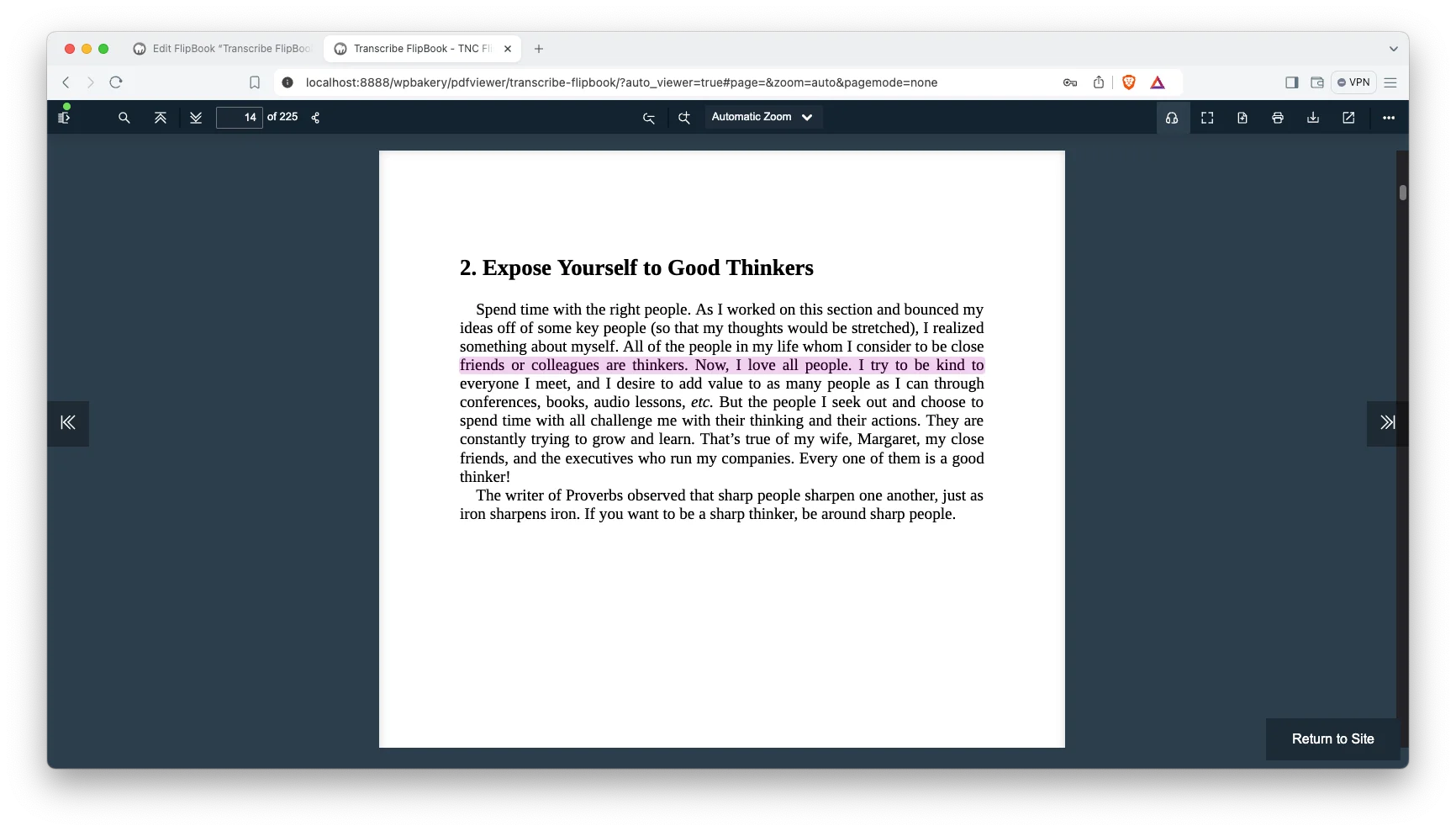
- Access Transcribe: Click on the “headphones icon” to start listening.

- Select Language: Choose your desired language.

- Select Voice: Select your preferred voice.
- Start Playback: Click “Read”
- Adjust Settings: Use playback controls (Read, Pause, Resume, Stop)

- Stop Playback: Click “Stop.”
Supported Languages
- English
- Italian
- Swedish
- French
- Malay
- German
- Hebrew
- Indonesian
- Bulgarian
- Spanish
- Finnish
- Portuguese
- Dutch
- Japanese
- Romanian
- Thai
- Croatian
- Slovak
- Hindi
- Ukrainian
- Chinese
- Vietnamese
- Greek
- Russian
- Catalan
- Norwegian Bokmål
- Danish
- Hungarian
- Turkish
- Korean
- Polish
- Czech
Use Cases For Speaking Flipbook Feature
Here are some use cases for a flipbook with transcribe/speaking functionality:
Multilingual Accessibility: Supporting multiple languages makes content accessible to a broader global audience.
Language Learning: Students can listen to correct pronunciation and intonation while reading the text. Great for vocabulary building and comprehension.
E-learning Modules: Integrate audio narration into online courses and training materials.
Product Catalogs: Include audio descriptions of products, making it easier for customers to learn about offerings.
Marketing Brochures: Create interactive brochures with audio narration to grab attention.
Training Materials: Use flipbooks with audio for employee onboarding and training.
Presentations & Reports: Share reports or presentations in a flipbook format with an audio option for team members.
Tourism & Travel Guides: It offers audio guides for tourists, providing information about landmarks and attractions.
Visually Impaired Users: Allows visually impaired individuals to access and “read” content by listening.
Reading Difficulties: Offers an alternative way to consume information for people with dyslexia or other reading challenges.
Tips for Best Experience
- For best listening, use headphones or speakers in a quiet environment.
- Experiment with different voices and speeds to find the settings that work best for you
- Simplify PDF and avoid images, it can’t read image text inside PDF. Avoid complicated PDF formatting.
Conclusion
Adding a speaking feature to your flipbooks is a smart move. It increases accessibility and different learning styles and makes your content more engaging. Imagine your readers listening to your work while commuting, or language learners practicing pronunciation. This simple addition extends your reach and provides a more inclusive experience.
TNC Flipbook simplifies this process. You can quickly create flipbooks with speaking functionality with these simple steps. Examples include interactive textbooks, accessible marketing materials, engaging children’s stories, and more. So, give your PDFs a voice and see the difference it makes and start creating speaking flipbooks.
Apart from this, If you want to read more blogs, visit here.





0 Comments