


You have got your content ready. Maybe it’s a beautiful magazine showcasing your latest product or an engaging e-book filled with valuable information. You even decided to present it as a digital FlipBook on your WordPress website. But simply uploading your PDF and creating a FlipBook is not enough. The secret to a successful FlipBook is customization. Creating a FlipBook on your WordPress site is an exciting way to make your content more interactive. Instead of just showing plain PDFs or images, a FlipBook lets your visitors flip through pages just like a real book.
Most people think it’s difficult to customize FlipBooks in WordPress, but let’s find out the react fact. If you have a perfect FlipBook plugin and a little guidance, you can quickly create and customize FlipBooks in WordPress. FlipBook customization is not just a visual change. You can gain more attention with a perfect FlipBook. A well-designed FlipBook helps your site rank higher in search engines and grow your business. It makes reading more fun and keeps people interested longer.
In this step-by-step guide, you will learn how to choose a perfect plugin and FlipBook customizations.
Table of Contents
- 1 What Is a WordPress FlipBook & Why Customize It?
- 2 Step 1: Choose & Install Your WordPress FlipBook Plugin
- 3 Step 2: Prepare Your Content For the FlipBook
- 4 Step 3: Upload Your PDF & Create FlipBook
- 5 Step 4: Customize Your FlipBook’s Design & Features
- 6 Step 5: Publish Your FlipBook
- 7 Step 6: Embed Your FlipBook on Your WordPress Site
- 8 Additional Tips For Creating Stunning FlipBooks
- 9 Customize FlipBook Content For SEO
- 10 Common Mistakes to Avoid
- 11 Why Bother Customizing Your WordPress FlipBook?
- 12 FAQ
- 13 Conclusion
What Is a WordPress FlipBook & Why Customize It?
A WordPress FlipBook works like a digital book or magazine. It allows you to uniquely flip the pages of your screen. Imagine browsing a catalog online where you can flip through the pages, clicking on items, much better than just scrolling. FlipBook customization allows you to create designs and features that highlight your brand and business.
You should customize your FlipBook because it will match your content to your niche. You can add your brand colors, fonts, logo, background color, and more. You will have full access to your FlipBook. Customization makes it better for readers by allowing you to add informative things. So this is why you need to customize your WordPress FlipBook. In the next section, you will find the exact instructions for creating and customizing a FlipBook on your WordPress site.
Step 1: Choose & Install Your WordPress FlipBook Plugin
To create a FlipBook in WordPress, you need a plugin that can convert your PDFs into FlipBooks. One popular and user-friendly option is TNC FlipBook – PDF viewer for WordPress. This plugin allows you to upload your documents, customize the design, and embed the FlipBook anywhere on your site easily. Let’s see how to install this Plugin:
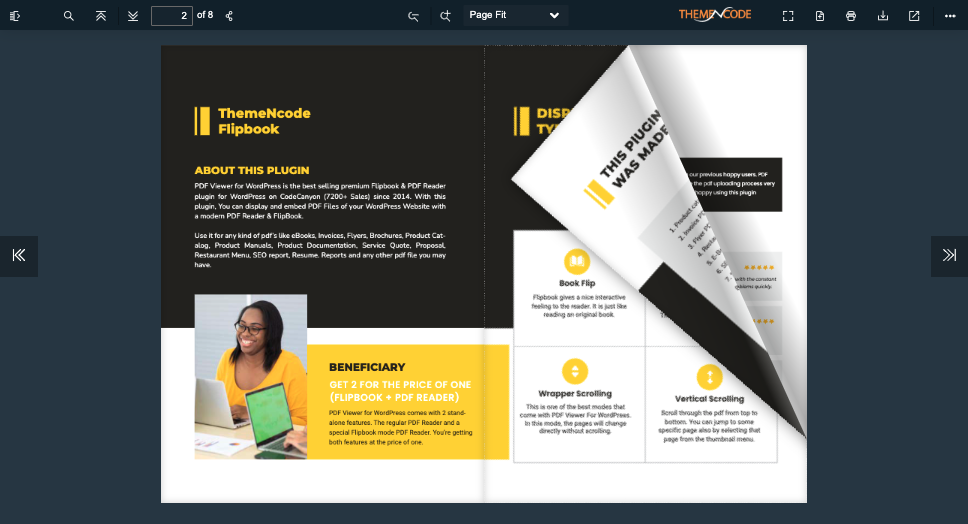
- Log in to your WordPress dashboard.
- Go to Plugins > Add New.
- Search for TNC FlipBook.
- Click Install Now and then Activate.
Once activated, you will see a new menu item in your dashboard where you can start creating your FlipBooks.
Step 2: Prepare Your Content For the FlipBook
Before you upload your files, it’s important to prepare your content properly:
- Use PDF format: PDFs work best because they preserve your layout and design.
- Optimize file size: Large files take longer to load and may frustrate visitors. You can use online compressors to reduce file size without losing quality.
- Design your PDF carefully: Use clear fonts, high-quality images, and a clean layout. Tools like Canva or Microsoft Word can help you design professional-looking PDFs.
- Create a thumbnail image: This small image represents your FlipBook on your site and should be eye-catching.
Step 3: Upload Your PDF & Create FlipBook
Now it’s time to upload your content into the FlipBook plugin:
- Open the TNC FlipBook menu in your WordPress dashboard.
- Click Add New FlipBook.
- Upload your PDF file and featured image.
- Give your FlipBook a clear, descriptive title. Use keywords related to your content to help with SEO.
- Assign categories or tags if available to keep your FlipBooks organised.
Once uploaded, your FlipBook is ready for customization.
Step 4: Customize Your FlipBook’s Design & Features
Customization makes your FlipBook unique and consistent with your website’s niche. Here are the key elements you can adjust:
Appearance & Color
- Choose background colors or images that match your brand.
- Select the theme style that best suits your content and design preferences.
- You will get 6 predefined theme options. Choose the best color that highlights your FlipBook.
- Create a viewer with your favorite custom colors to match your brand style if none of the predefined color schemes match your brand
- Enable or disable buttons like zoom, fullscreen, thumbnails, and page numbers.
- Users can control their view with zoom in/out and full-screen options. I recommend setting the default zoom to page-fit for a better user experience unless you have a different plan.
- Include clickable links inside your FlipBook pages to direct users to other pages or websites. Just FYI, these links should be created as hyperlinks on your PDF document.
Interactive Features
- Add bookmarks or a table of contents for quick navigation.
- Enable sound effects for page turns if you want a more realistic feel.
- Choose transition effects from hard or smooth
- If you want your readers/users/customers to listen to your FlipBook, enable the Transcribe feature. It will read each page along with text highlighting, which is what most users appreciate at this time of AI.
Page Mode
- You can select thumbnail, attachment, and bookmarks as the page mode.
- This will come as the table of contents based on what you select.
- Make the navigation process easier for the visitors.
Toolbar options & Icon Sizes
- You will find many toolbar options that can be turned on or off. You can select them as you wish.
- You will get 3 different icon sizes. Select the icon size according to your needs. I recommend setting it to medium for maximum usability.
You will get more customization options to make sure your FlipBook is consistent with your brand. Preview your FlipBook as you customize it to see changes in real time.
Step 5: Publish Your FlipBook
Once you upload your PDF and make all your changes, simply click “publish” to create your FlipBook. You can then check the link to see your PDF transformed into a FlipBook.
You can share this new link, which opens in full screen. You can also put the FlipBook directly into any page or post on your website.
Step 6: Embed Your FlipBook on Your WordPress Site
After customizing and publishing, you need to add the FlipBook to your website so that visitors can view it.
- The plugin generates a shortcode for each FlipBook.
- Copy this shortcode.
- Paste it into any page, post, or anywhere you want the FlipBook to appear.
- Preview your page to make sure the FlipBook displays correctly on desktop and mobile devices.
Using shortcodes keeps your website clean and ensures the FlipBook loads efficiently.
Additionally, if you want a smoother embedding experience, you can look at our page builder integration addons. There are add-ons available for the most famous page builders.
Additional Tips For Creating Stunning FlipBooks
- Keep FlipBook Simple: Don’t overload your FlipBook with too many colors or buttons. Clean, simple designs look more professional.
- Use Standard Visuals: Clear images and clear text make your FlipBook readable and user-friendly.
- Write Active & Clear Titles: Use direct language that grabs attention and encourages visitors to explore.
- Test before publishing: Always preview your FlipBook on various devices to catch any issues.
- Update regularly: Keep your FlipBook content fresh and relevant to maintain visitor interest.
Customize FlipBook Content For SEO
You need to use simple keywords in the title, headings, and descriptions to help more people find your FlipBook. This makes it easier for search engines like Google to understand what your FlipBook is about. Include actual text inside your FlipBook instead of just images because search engines cannot read words inside images.. Having searchable text helps your FlipBook show up in search results.
Add short descriptions and tags that clearly explain your content. These descriptions can encourage people to click on your FlipBook when they see it online. Don’t forget to allow search engines to index your FlipBook so it can appear in search results. Following these simple instructions will make your FlipBook more visible and bring more visitors to your WordPress site.
Common Mistakes to Avoid
One of the most common mistakes in FlipBooks is uploading large and unoptimized PDF files. Large files take longer to load, which is why visitors leave your site quickly. To keep your FlipBook fast and smooth, always compress your PDFs before uploading. This way, your FlipBook will load quickly on all devices. It gives users a better experience and helps your site rank higher.
Another mistake is not making your FlipBook mobile-friendly. Many people browse websites on their phones or tablets. If your FlipBook doesn’t work well on smaller screens, visitors might get frustrated and leave. Always test your FlipBook on different devices to make sure it works well. Keep your FlipBook simple, clean, and focused on your content to make it enjoyable and easy to navigate.
Why Bother Customizing Your WordPress FlipBook?
You need to have a clear idea about customization. Let’s find out why you should put time and effort into customizing your WordPress FlipBook.
Make a Good Impression: Your FlipBook often shows your content for the first time. A special design looks professional and grabs attention right away.
Show Your Brand: Add your logo, colors, and fonts. This helps people remember and trust your brand.
Easy to Use: A custom FlipBook is simpler and more fun to read. You can set up controls that make sense, so people stay longer.
Get People Involved: Add links, videos, or buttons inside. This turns a simple read into an exciting experience.
Make Your Content Unique: There’s a lot of content online. A custom FlipBook makes your content shine. It shows how carefully and uniquely you present your information.
FAQ
Q. Why customize a FlipBook?
A. Customization matches your brand, improves usability, and helps with SEO and visitor retention.
Q. Which WordPress flipbook plugin should I use?
A. TNC FlipBook – PDF viewer for WordPress is a simple, popular plugin to create and customize FlipBooks.
Q. How to prepare PDFs for FlipBooks?
A. Use optimized PDFs with clear fonts and images. Compress files to speed up loading.
Q. Can I add interactive features?
A. Yes, features like navigation buttons, clickable links, bookmarks, and page transitions can be added.
Q. How do I add a FlipBook to my site?
A. After publishing, use the provided shortcode to embed the FlipBook on any page or post.
Q. How does FlipBook customization help SEO?
A. Adding titles, descriptions, tags, and searchable text helps search engines find your FlipBook.
Q. Common mistakes to avoid?
A. Avoid large, unoptimized PDFs and poor mobile responsiveness.
Conclusion
Customizing your WordPress FlipBook makes your content more interesting and easier to use. If you follow this step-by-step guide, you can easily build and customize a FlipBook perfectly. It fits your brand, attracts your visitors, and improves your website’s SEO. You can uniquely display a product catalog, portfolio, or brochure with a well-designed FlipBook.
Start today and transform your static documents into impressive experiences. If you need help or want to explore advanced customization, don’t hesitate to learn more about the features of your FlipBook. Take time to explore the customization options offered by your WordPress FlipBook plugin and experiment with different settings and interactive elements.
Feel free to reach out if you want more tips on creating amazing FlipBooks or improving your WordPress website.




0 Comments